MOM SUITE
1. IntroductionThe MoM Suite in ERPCA is designed to help organizations efficiently manage meetings from scheduling to follow-up. It enables users to schedule meetings, prepare age…
1. Introduction
The MoM Suite in ERPCA is designed to help organizations efficiently manage meetings from scheduling to follow-up. It enables users to schedule meetings, prepare agendas, record meeting discussions, assign action items, and monitor their completion from a single platform.
Key Features
Schedule meetings
Manage attendees
Create agenda templates
Record meeting minutes
Assign action items
Track pending tasks
Monitor meeting statistics
View meetings in calendar format
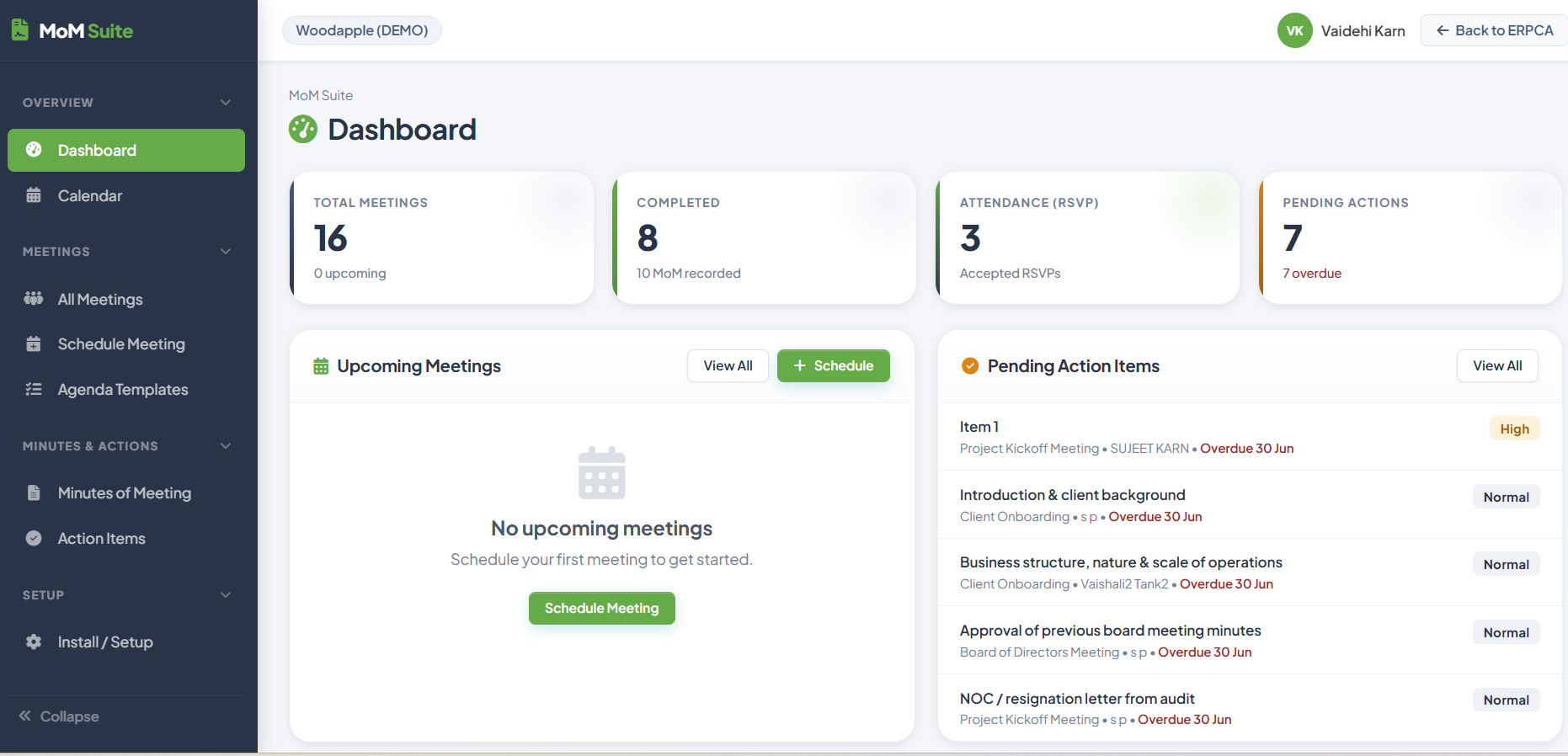
Dashboard Cards
Total Meetings
Displays the total number of meetings created in the system.
Completed Meetings
Shows the number of meetings for which Minutes of Meeting have been completed.
Attendance (RSVP)
Displays the number of participants who have accepted meeting invitations.
Pending Actions
Shows the total number of pending and overdue action items.
Upcoming Meetings
Displays meetings that are scheduled in the future.
Click Schedule to create a new meeting.
Pending Action Items
Displays all pending tasks assigned during meetings.
Information available:
Action Item
Meeting Name
Assigned User
Due Date
Priority
2. Calendar
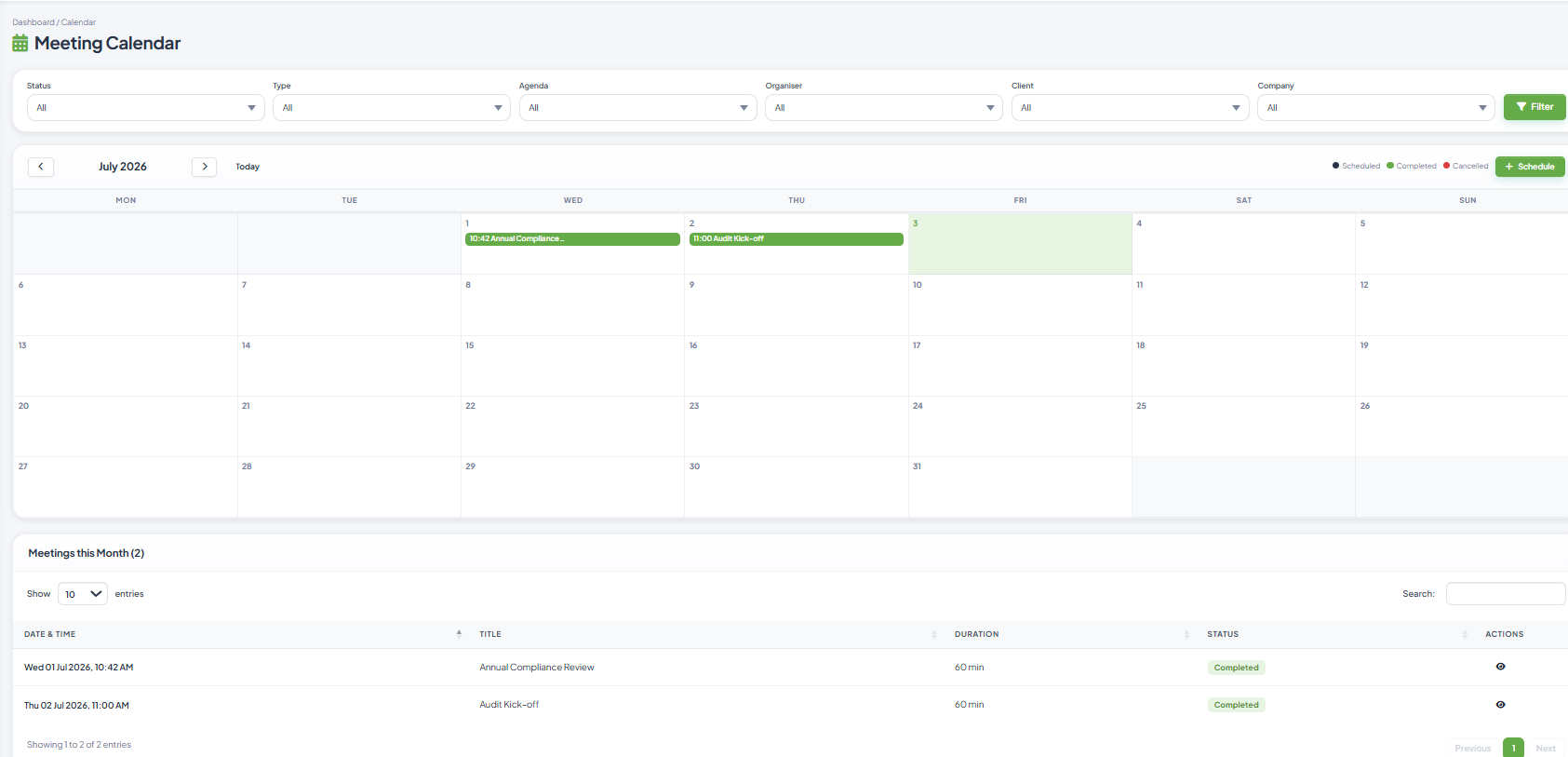
The Calendar provides a monthly, weekly, or daily view of scheduled meetings.

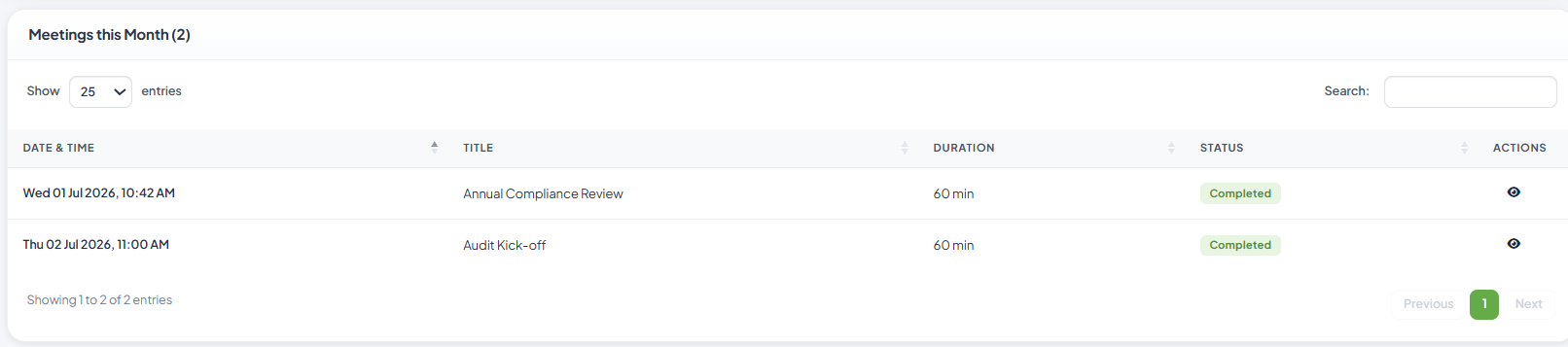
Features
View scheduled meetings
Click a meeting to view details
Easily identify upcoming meetings
Navigate between months
Reach out meetings through various filter option
4. All Meetings
This page displays every meeting created in the system.
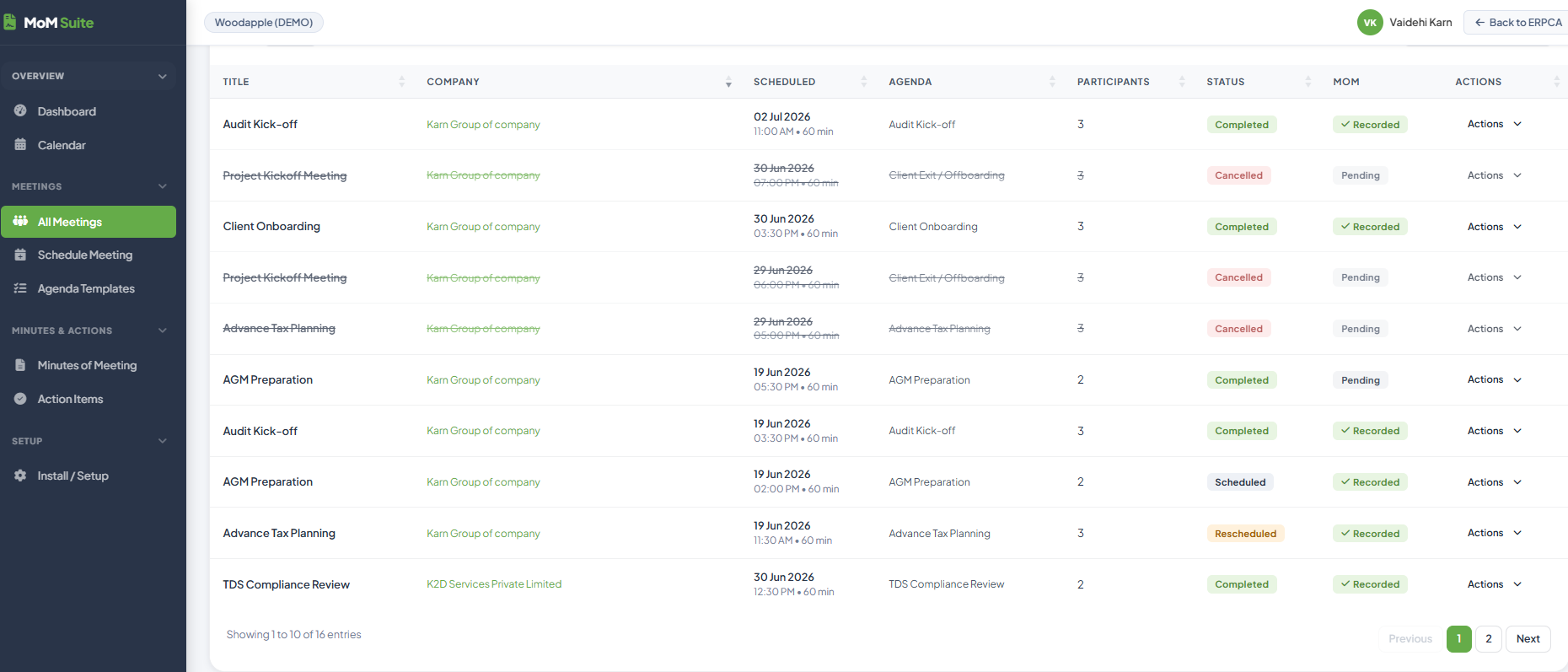
Available Information
Meeting Title
Organizer
Meeting Date
Status
Participants
Minutes Status
Available Actions
View Meeting
Edit Meeting
Record Minutes
View Action Items
Use the search box and filters to quickly locate meetings.
5. Schedule Meeting
To schedule a new meeting:
Step 1
Click Schedule Meeting.
Step 2
Enter the following details:
Meeting Title
Meeting Date
Start Time
End Time
Meeting Type
Location / Meeting Link
Organizer
Participants
Step 3
Add the meeting agenda.
Step 4
Click Save.
The meeting invitation is created successfully.
6. Agenda Templates
Agenda Templates help users save frequently used meeting agendas.
Create a Template
Open Agenda Templates.
Click Create Template.
Enter the template name.
Add agenda points.
Click Save.
The template can now be selected while scheduling future meetings.
7. Minutes of Meeting
After the meeting is completed, users can record the meeting minutes.
Open the Meeting
Select the meeting from All Meetings.
Click Record Minutes.
Record
Discussion Summary
Decisions Taken
Notes
Attachments
Click Save.
The Minutes of Meeting are now available for future reference.
8. Action Items
Action Items help track responsibilities assigned during meetings.
Create an Action Item
Enter:
Action Title
Description
Assigned To
Due Date
Priority
Click Save.
Update Action Status
Users can update the progress as:
Open
In Progress
Completed
On Hold
Completed actions are automatically removed from the pending list.
9. Install / Setup
The Install / Setup section is used to configure the MoM Suite.
Depending on user permissions, administrators can:
Configure organization details
Manage user access
Configure meeting preferences
Enable notifications
Note: This section is generally accessible only to administrators.
Frequently Asked Questions (FAQ)
Who can schedule meetings?
Users with the required permissions can create and schedule meetings.
Can I edit a meeting after scheduling?
Yes. Meetings can be edited before or after the meeting, depending on your access rights.
Can I attach documents to the meeting?
Yes. Supporting documents can be uploaded while recording the Minutes of Meeting.
How can I track pending tasks?
Navigate to Action Items to view all pending, completed, and overdue tasks.
Can I reuse the same agenda?
Yes. You can create Agenda Templates and use them while scheduling future meetings.
Best Practices
Create the meeting well in advance.
Add all participants before sending invitations.
Use Agenda Templates to save time.
Record minutes immediately after the meeting.
Assign action items with clear due dates.
Regularly review pending action items to ensure timely completion.
📘 Recommended Deliverable
For client onboarding, I recommend creating this as a 30–40 page illustrated User Manual in Microsoft Word with:
ERPCA branding and logo
Table of Contents
Step-by-step instructions
Screenshots of every page (Dashboard, Calendar, Schedule Meeting, Minutes of Meeting, Action Items, etc.)
Tips, notes, and FAQs
This format is ideal for sharing with clients during implementation and training sessions.
Updated 24 Sep 2026 · View on support.erpca.com