Customer Web Portel Access
Create CustomerGo to New Customer menu.Enter all required customer details.Enable Customer PortalWhile creating the customer, you will see an option called Enable Customer Portal.T…
Create Customer
Go to New Customer menu.
Enter all required customer details.
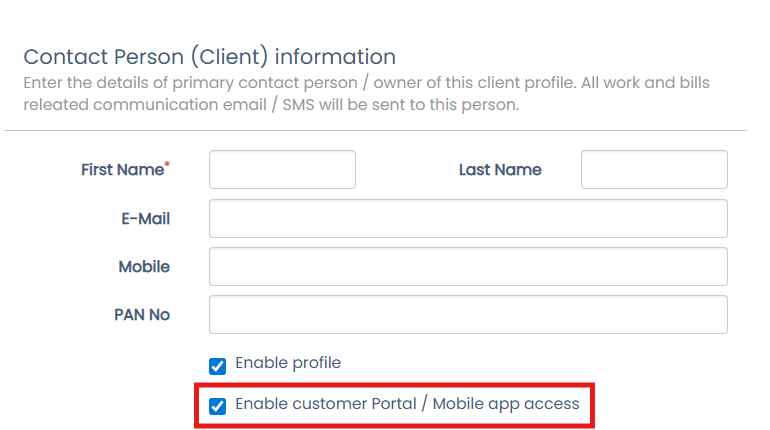
Enable Customer Portal
While creating the customer, you will see an option called Enable Customer Portal.
Tick / Enable this option
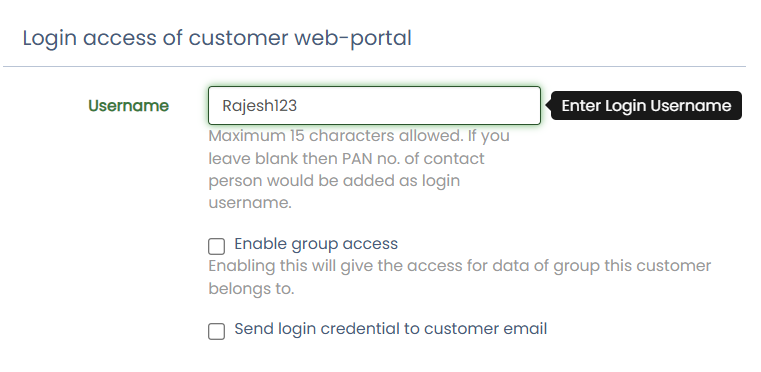
Enter Username
Enter a Username for the customer.
Make sure the username is correct and easy to remember.
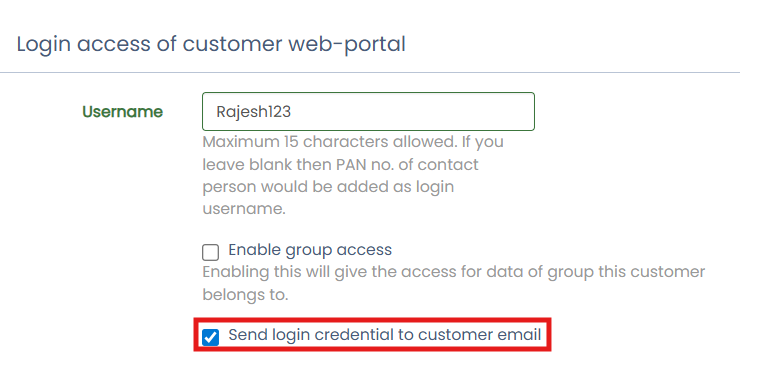
Send Login Credentials
Tick the option Send Login Credentials to Customer Email.
This ensures login details are automatically sent to the customer.
Click on Submit to complete customer creation.
What Happens After Submission?
The system will auto-generate a password.
The username and password will be sent to the customer’s registered email ID.
Customer Login Process
Customer will open the Customer Portal Login Page. https://www.erpca.in/
Enter the Username and Auto-Generated Password received via email.
Click Login to access the portal.
After Login page will be like this
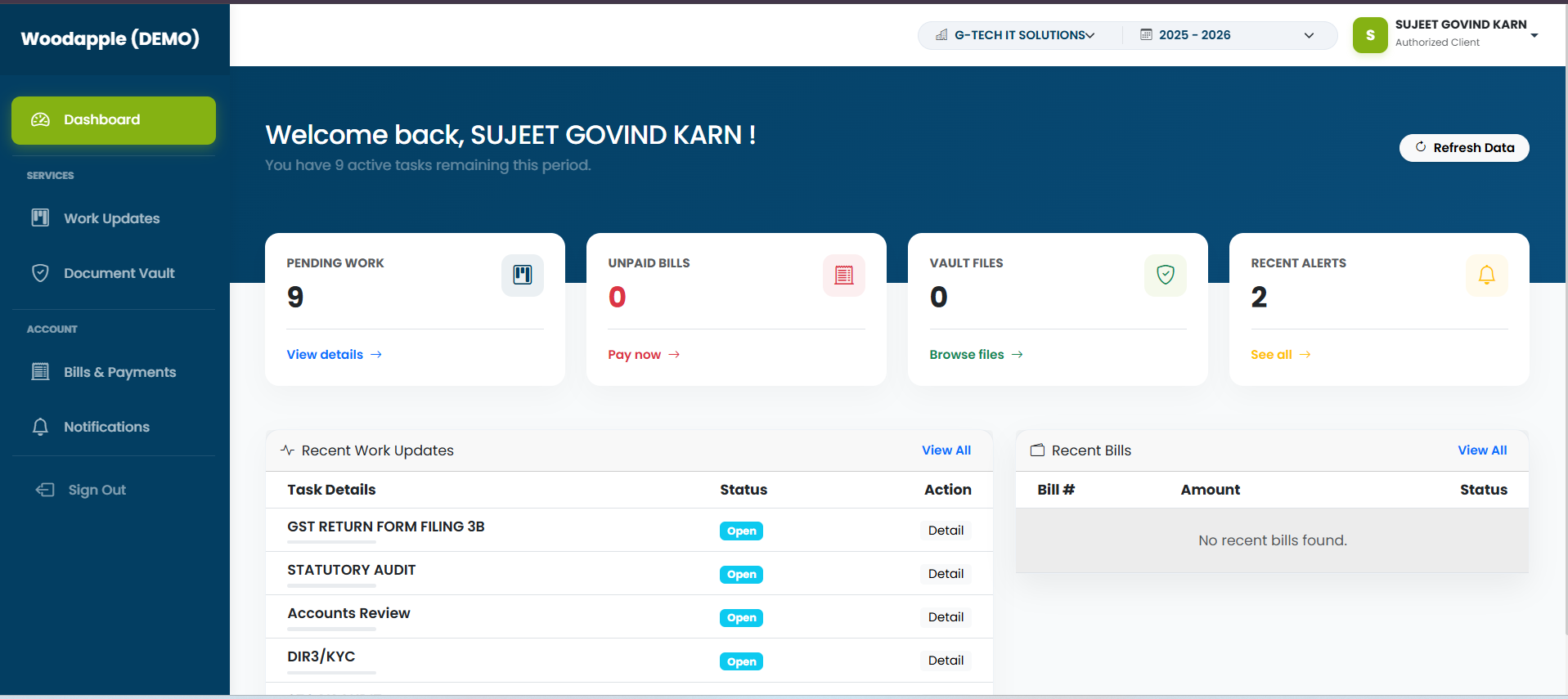
Pending Work
Shows total pending tasks.
Click View Details → to see task list.
Unpaid Bills
Displays total unpaid invoices.
Click Pay Now → to proceed with payment
Vault Files
Shows total uploaded/shared documents.
Click Browse Files → to open Document Vault.
Recent Alerts
Displays important notifications.
Click See All → to view all alerts
🔹 Recent Work Updates Section
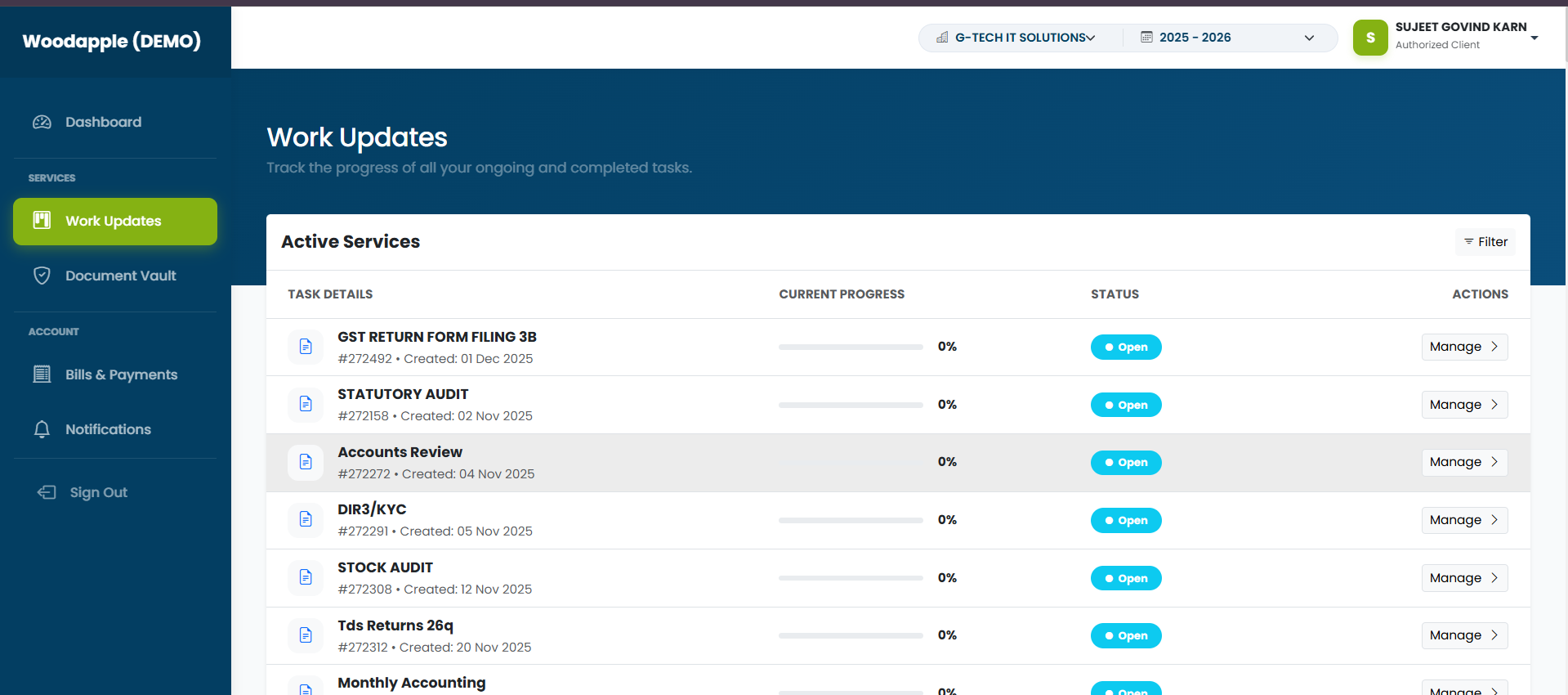
Task Details (e.g., GST Return Filing 3B, Statutory Audit, etc.)
Status (Open/Closed)
Action → We have manage option where we can upload the required documents.
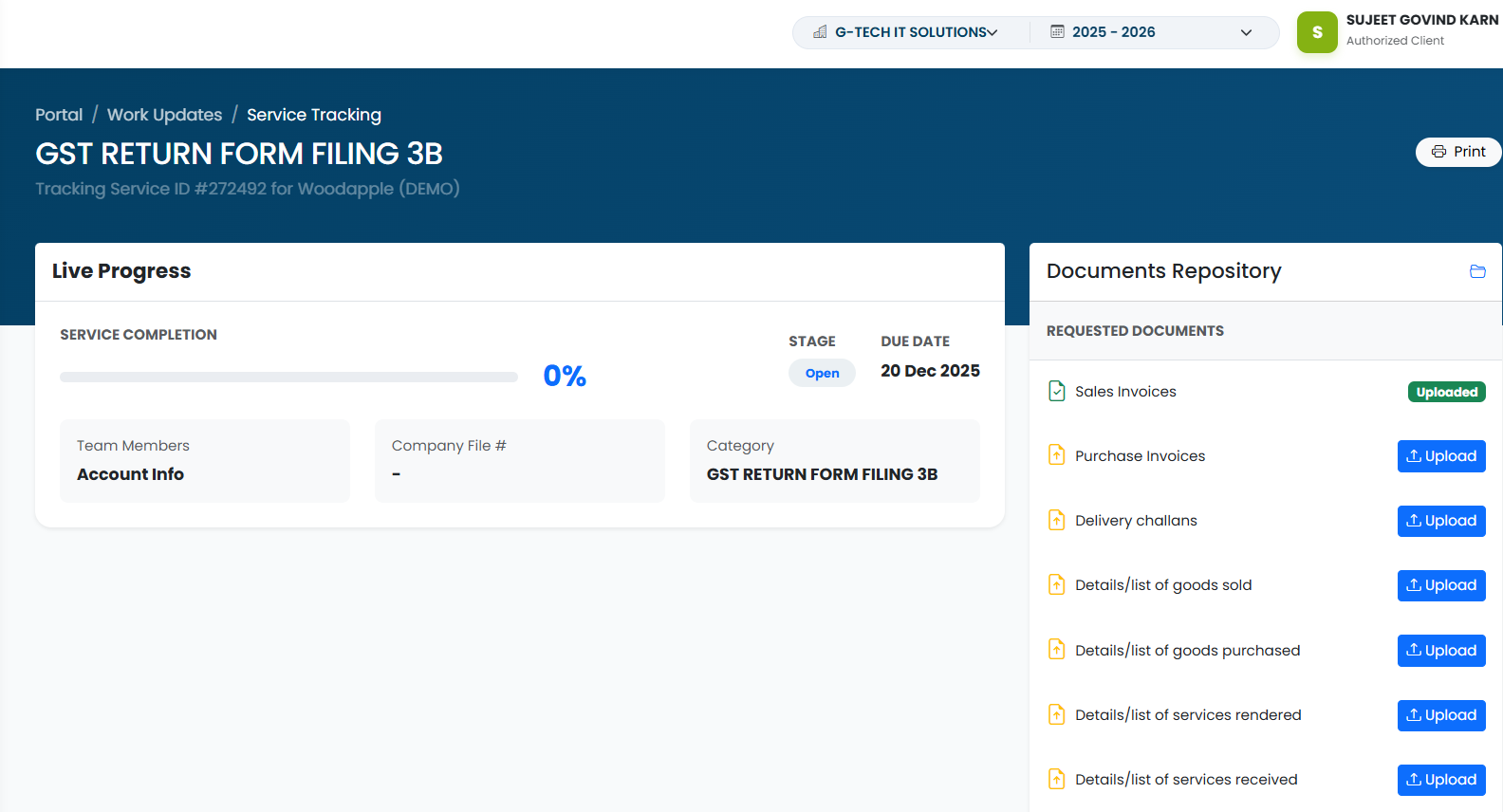
2️⃣ Document Vault (Document Repository)
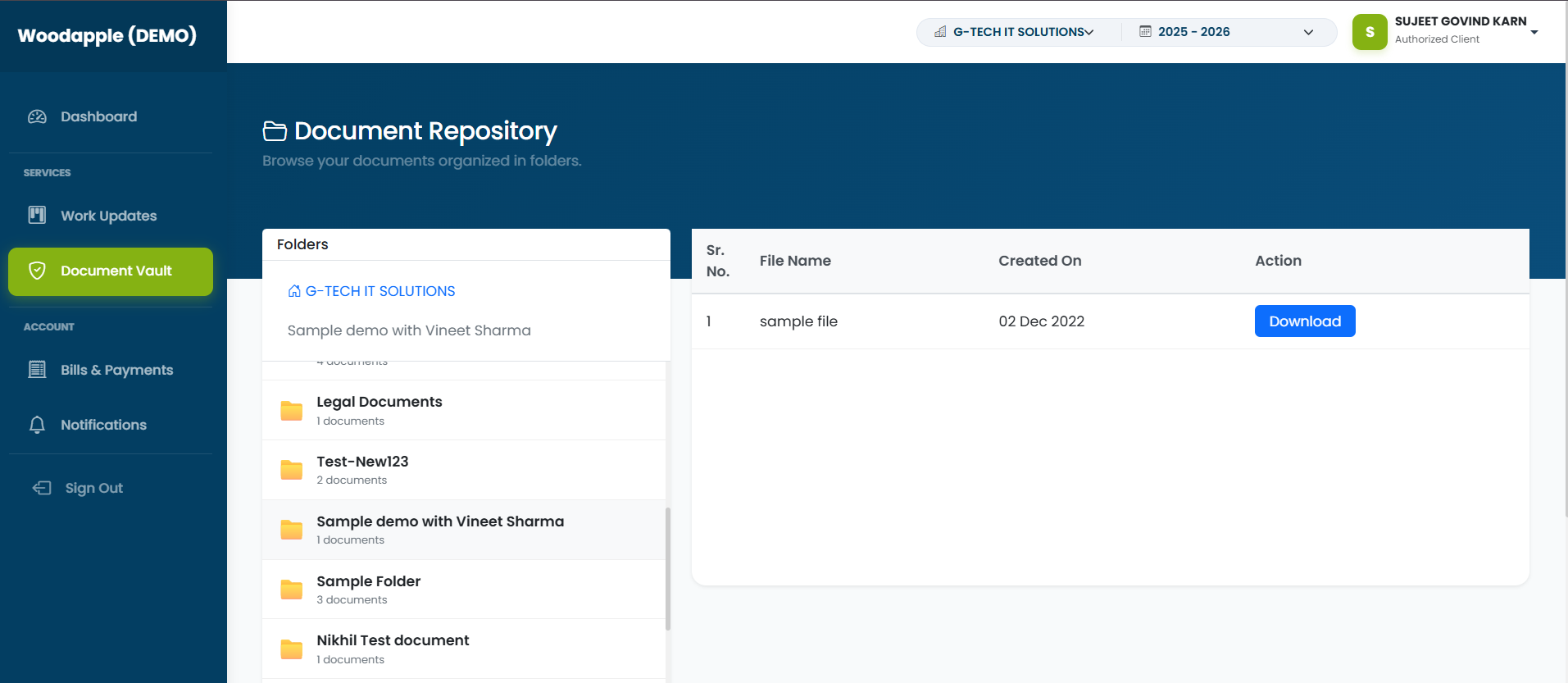
Click Document Vault from left menu.
🔹 Folder Panel
Shows firm folders.
Displays number of documents inside each folder.
Click any folder to open documents.
Download documents
3️⃣ Bills & Payments
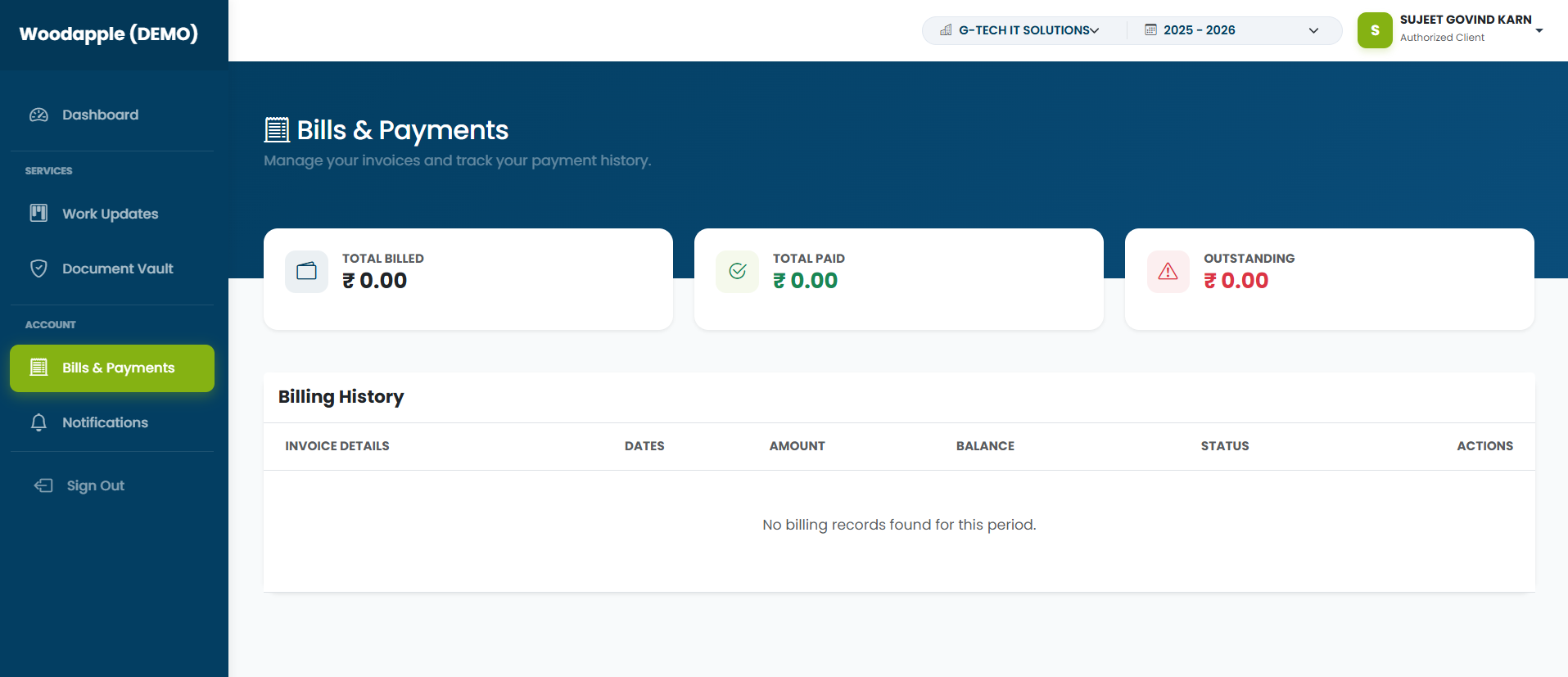
🔹 Summary Section
Total Billed – Total invoice amount raised.
Total Paid – Total amount paid.
Outstanding – Pending amount to be paid
Billing History
Updated 25 Sep 2026 · View on support.erpca.com